
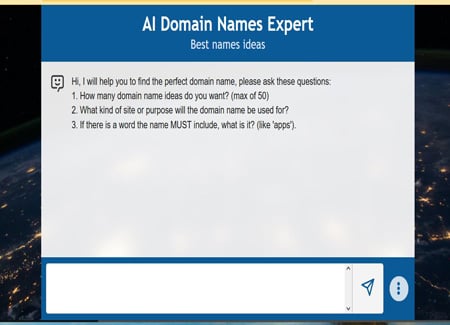
AFOCUSED AI TOOL - NEED A DOMAIN NAME IDEA - Just Ask The Master! Click to Started
AI Domain Names Expert
AFocused AI App that will help you find a good Domain Name based on questions you answer. Harness the Power of AI!
This is AFocused AI App. Focused AI Apps are "Pre-Prompted" with our proprietary AI Prompts designed to focus the AI to provide information, answer questions, or perform tasks related to a specific topic/niche/type of task. This simplifies the use of AI as well as makes it more accurate.
To SIMPLIFY AI and our Apps: except for INTERNAL coding and things like App Name and background images, ALL Focused AI Apps Look similar, function the same, have the same or similar buttons, etc.
Once you have seen how to use one, you know hot to use them all!
The Video Tutorial below Illustrates how all AFocused AI Apps work.
Apps Fixing a Problem!
Using search engines Like Google involves a lot of work.
Even if you just need information or a question answered. Finding search terms that display web sites that actually have your information is a trial and error task. Then you have to read the web sites and sift through to find the information.
OR
You can just "ask" the AI App - that we have pre-focused and trained for your topic or task. It outputs your answer or does your task (like make a list). Safes time and effort.
An Opportunity To Make Money:
We are constantly working on ways for you to make money using our Apps like this one.
You Can read a list of dozens of ways to make money with AI and Apps by CLICKING HERE (A PopUp Window Will Appear)
With this App, it's picking a good name that helps you make money.
The various features and capabilities for this App.
ALL our Apps are Simplified Web Apps with a single focus and a single screen
The App is MULTI-PLATFORM- it runs on ANY DEVICE capable of displaying a web page.
ANY Results You Get from the AI can be copied to your clipboard with the button on the slide out panel men
On the App slide out panel [Settings] you can choose any of the AI Sources (Models) to use for your question or task
It's flexible, It's Easy - It's fun!
It is NOT Complicated or difficult - It IS Fun! And the Possibilities? Endless!
ALL our Apps have a similar, simplified design. The AI Apps, The Non-AI Apps, The Money Maker Apps. Once you have used/learned one, you know them all.
Screenshots (CLICK An Image TO See It Actual Size)
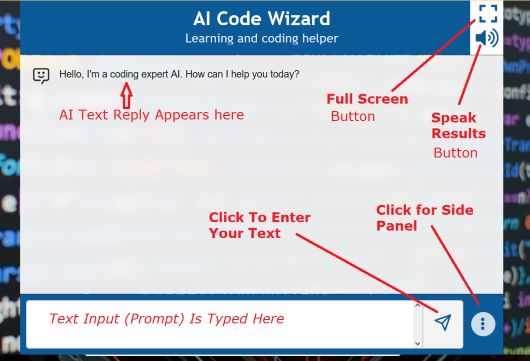
The MAIN Screen (Similar for All)
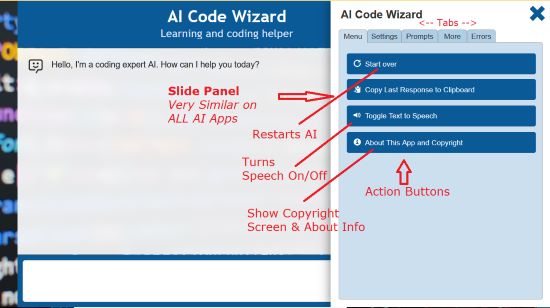
The R Slide Panel (Similar on All Apps)
ALL our Apps have a similar, simplified design.
All the Apps have simple Slide Panels that slide out from the left or right. Each panel has Tab sections on the Panel. ALL AFocused Apps have a right-side Slide Panel. Some Apps, like the Money Makers, have slide panel on left and right. The Tab sections are used to do things related to using the App, with buttons or areas for typing text.
[NOTE: Sometimes the number of Tabs varies, depending on the topic/task for that particular App. FOR EXAMPLE if the App doesn't need "Prompts", there will be NO "Prompts" Tab. The buttons on the tab sections may also vary slightly. But All are well marked. IF you have issues or questions, EMAIL us]
The Slide panels are hidden out of the way. There is a "Gear" button in upper left to display a left side slide panel, a 3 dot [ . . . ] button to display the right slide panel.
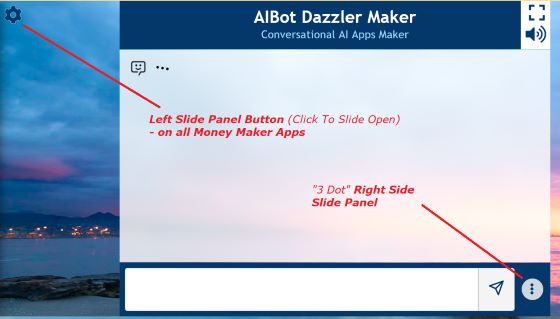
The MAIN Screen (Similar for All)
The Usual Tabs in the slide panel:
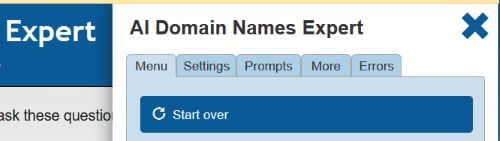
- [MENU] Tab - usually has function buttons:
Start Over - restart your AI session
Copy Last Response To Clipboard - copies the last response from the AI
Toggle Text to Speech - turn the speech mode on and off
About This App & Copyright - display info on the App and Copyright notices - [Settings] Tab - displays the buttons & menus used to choose & use an AI Source And Information:
AI Model Button - Button with drop down menu to display the AI Sources List
AI Creativity Setting - set between 1 and 10. The higher the value, the more random
Set Values - AFTER choosing a model, you click to 'set' it
Reset Values - Resets the AI Source Model to the default - [Prompts] Tab - one of 3 methods we use to GIVE you prompts to use. It displays a list of prompts. You just click one to AUTOMATICALLY copy it to the text input box.
- [More] Tab - Displays some Help Info, and an image - an Ad for whomever created the App (many of our Focused Apps were created using one of our several AI Bot makers)
- [Errors] Tab - Information panel on how to deal with errors from the AI Response.
On AI Apps, there is a tab on the right Slide Panel Called "Settings."
On that panel there is a drop down list to select the AI Source (the AI "Model")
and buttons to "Set" or "Reset" Your selection.
IF You want to change the default setting:
Click the Drop Down button,
Click to Choose an AI source,
Click "Set" To lock setting (Reset to go back to default)
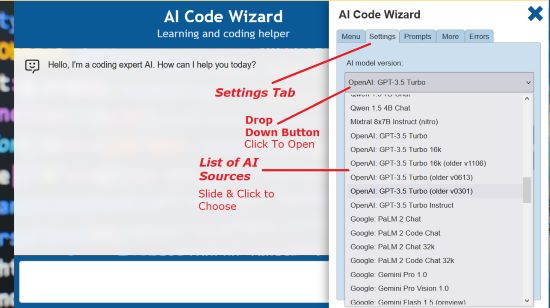
AI Sources (Similar for All)
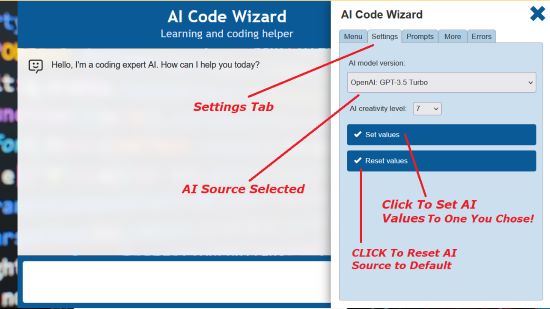
Setting The AI Source (Similar on All Apps)
All of our AI Apps are capable for creating things for you. From eBooks to Articles and graphics. With THIS App you can create:
Besides doing related tasks, AFocused APP can create content, edit, or change content related the topic of it's preset Topic.
